Start
Creator
Studio dashboard training
Use the dashboard to choose worlds, read your credit status at a glance, and keep drafts organized.
EducationMuseum or exhibitStoryworldProduct showroomTravel or real estateTraining
Goal
Make the Studio dashboard your daily home base — the one place you open, review, and manage every world without second-guessing.
When to use it
- You have more than one world and need to find the right one fast.
- You want to check credit availability before kicking off generation-heavy work.
- You need to move cleanly between drafts, published worlds, and public worlds.
Step-by-step walkthrough
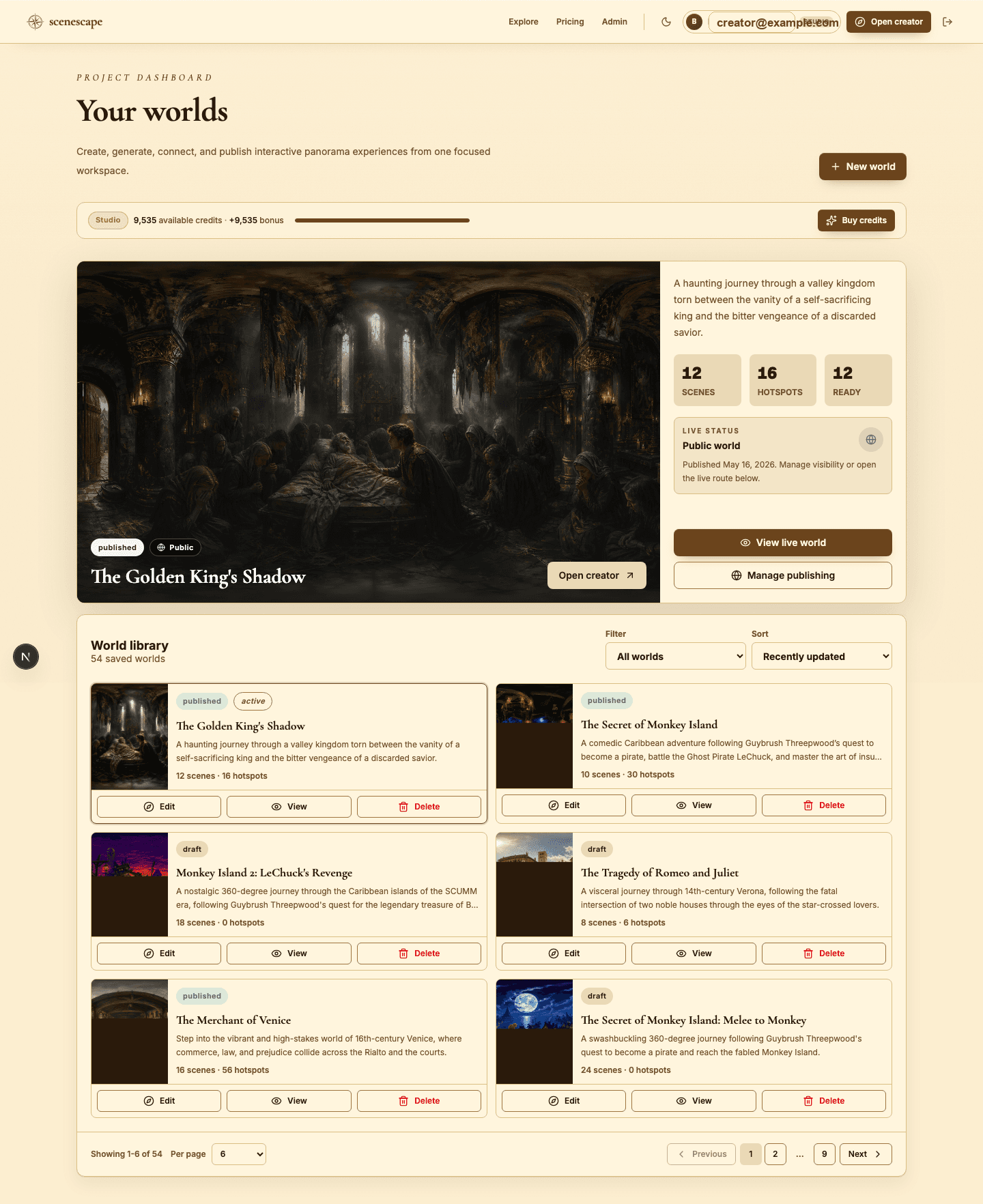
- Read the credit bar first. It tells you what you can afford before you commit to a generation run.
- Use the featured world panel to jump back into your active world, view its live version, or manage publishing.
- Open the world library for the complete list of everything you have saved.
- Filter by status to isolate exactly what you need: drafts, published, public, private, or all worlds at once.
- Sort by recently updated while you are actively building, or by scene and hotspot count when you are auditing larger projects.
- Choose Edit to keep authoring, or View to inspect the world exactly as a published visitor would see it.
Best practices
- Name worlds descriptively from the start — future you, with a dozen drafts, will be grateful.
- Glance at your credit balance before any batch generation, not after.
- Keep a clear mental line between 'still drafting' and 'already live' worlds.
- Lean on pagination and filters once your library grows past a screenful.
Avoid these mistakes
- Editing the wrong world because two drafts have nearly identical names.
- Deleting an old world before confirming it is not still reachable through a shared link.
- Starting a large build without checking whether you have the credits to finish it.
Go deeper
- Treat the dashboard like a production board: active work, live work, and experiments should be instantly distinguishable.
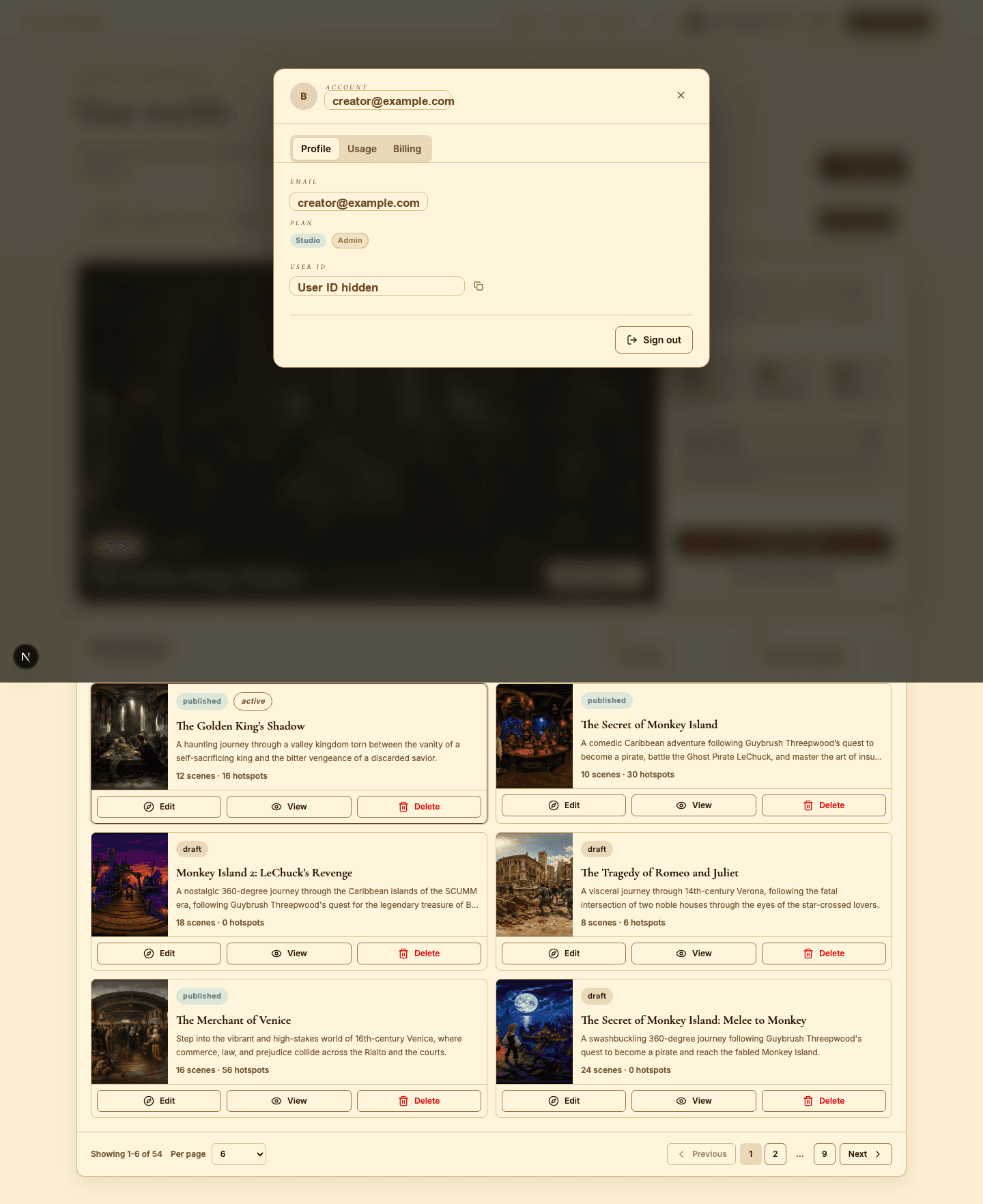
- Open the account modal to understand your real usage patterns — not just the headline credit number.
- Whenever a world is live, revisit its public route after any meaningful edit to confirm the change landed.
Screenshot callouts
Related next lessons
Start
Plans, credits, and usage
Understand plan limits, monthly credits, bonus credits, and exactly which actions spend credits.
ContinueBuild
Builder workspace orientation
Get fluent with the main builder regions: the top toolbar, panorama canvas, Scene Director, scene strip, and inspector.
ContinuePublish
Previewing, publishing, and Explore
Check readiness, choose the right visibility, push updates to live worlds, and decide when a world belongs in Explore.
Continue