Build
Creator
Builder workspace orientation
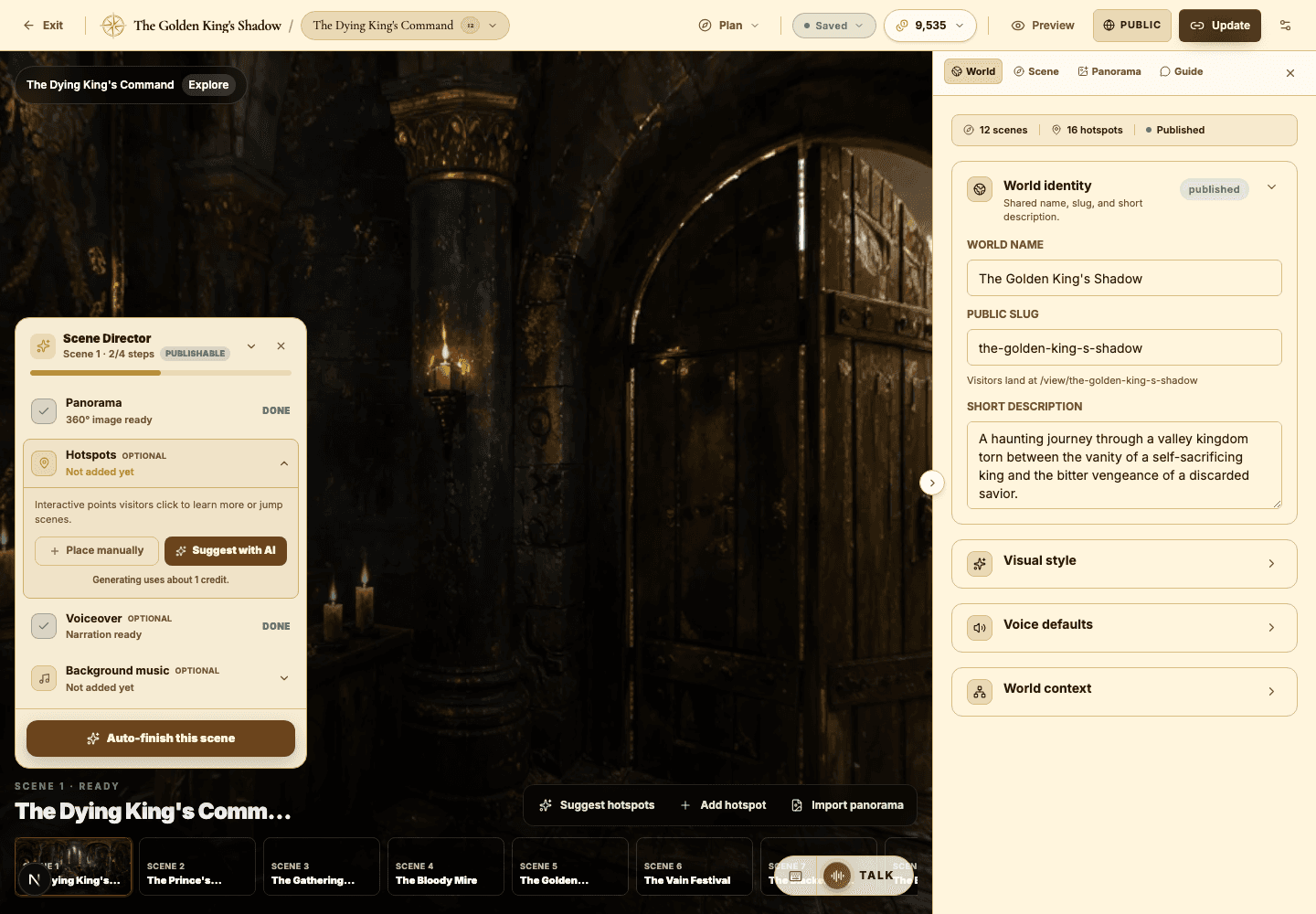
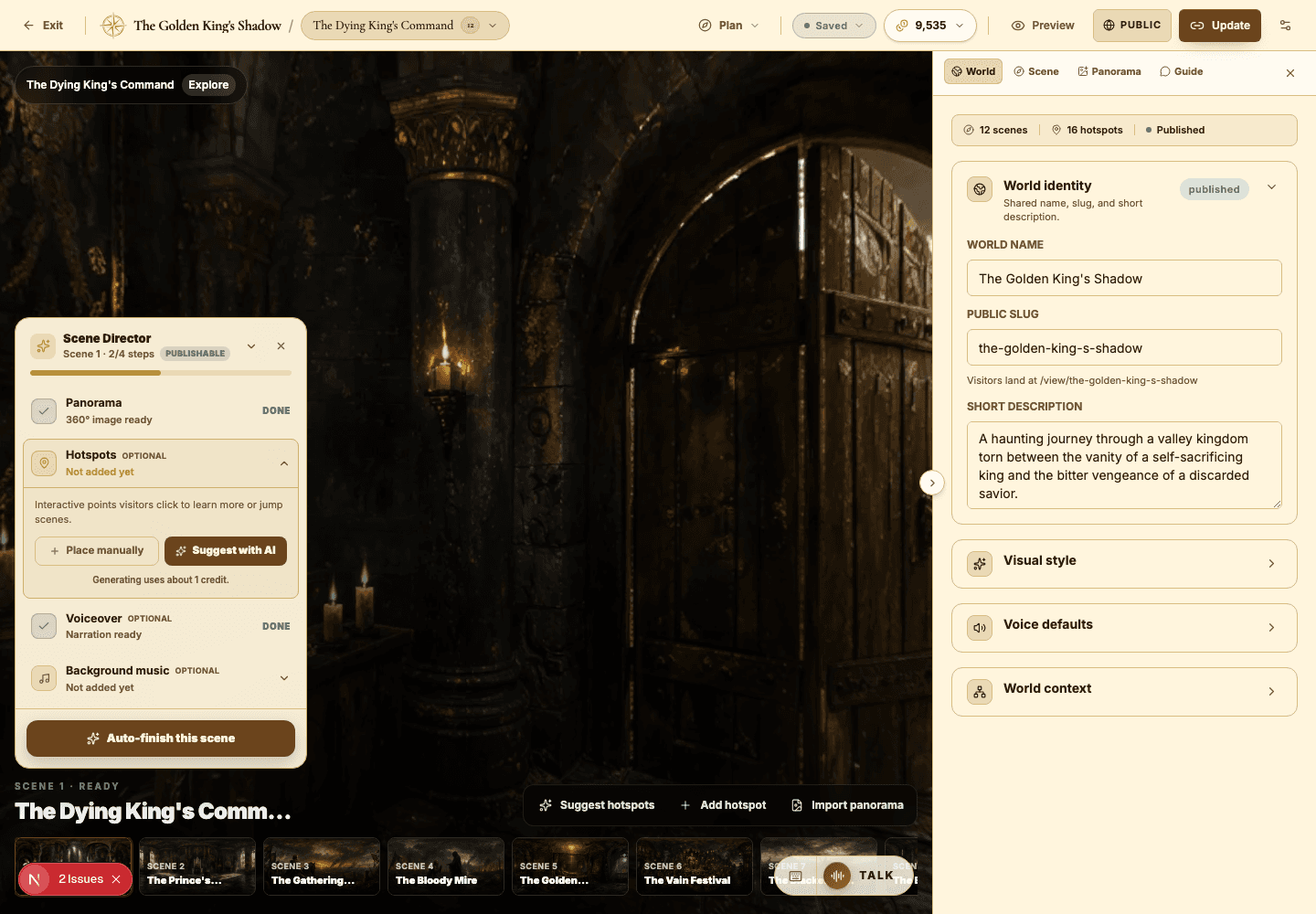
Get fluent with the main builder regions: the top toolbar, panorama canvas, Scene Director, scene strip, and inspector.
EducationMuseum or exhibitStoryworldProduct showroomTravel or real estateTraining
Goal
Know exactly where every kind of edit lives, so you spend your time creating instead of hunting through the interface.
When to use it
- You just opened the builder and want a quick orientation.
- You are shifting from high-level planning into detailed scene editing.
- You need to teach another creator how the workspace is laid out.
Step-by-step walkthrough
- Use the top toolbar for the global controls: exit, planning tools, save and publish status, credits, Preview, visibility, and Update.
- Use the panorama canvas to inspect the scene, test the viewer's perspective, and place hotspots precisely.
- Use Scene Director as your readiness checklist — it walks you through panorama, hotspots, voiceover, and music for each scene.
- Use the scene strip to jump between scenes instantly and keep the overall sequence in view.
- Use the inspector tabs to edit world identity, scene copy, panorama prompts, and AI Guide settings.
- Use Preview before publishing any update, so visitor-facing issues surface while they are still cheap to fix.
Best practices
- Keep the inspector open whenever you are doing detailed writing or settings work.
- Lean on Scene Director when you want the fastest route to a publish-ready scene.
- Use the scene strip to sanity-check pacing across the whole world at once.
- Treat Preview as a required step, never an optional one.
Avoid these mistakes
- Editing world-level fields when you actually meant to change just the active scene.
- Ignoring what the Scene Director readiness state is telling you.
- Publishing without re-checking the canvas after moving hotspots around.
Go deeper
- Remember the split: world settings shape the whole experience, scene settings shape only the current panorama.
- The builder is built so planning and detailed editing can both happen without ever leaving the workspace.
- When something feels hard to find, start your search in the inspector tabs or the Plan menu.
Screenshot callouts
Related next lessons
Build
Scenes and panorama generation
Write sharper scene prompts, choose the right generation quality, import your own panoramas, and stop wasting credits on regeneration.
ContinueImprove
Hotspots, narration hotspots, and portals
Design clickable moments that teach, tell a story, and move visitors smoothly through connected scenes.
ContinueImprove
AI Guide and quiz mode
Configure scene-level guidance so visitors can ask questions, get help, or be quizzed right inside the world.
Continue