Build
Creator
Story Plan and Scene Map
Use the planning tools to audit continuity, scene coverage, and portal navigation before visitors ever get lost.
EducationMuseum or exhibitStoryworldProduct showroomTravel or real estateTraining
Goal
Keep your world coherent by stress-testing its story structure and scene-to-scene navigation before you publish — not after a visitor reports being stuck.
When to use it
- Your world has grown past three scenes.
- You are adding portals or branching navigation paths.
- You need to confirm the world you built still matches the world you planned.
Step-by-step walkthrough
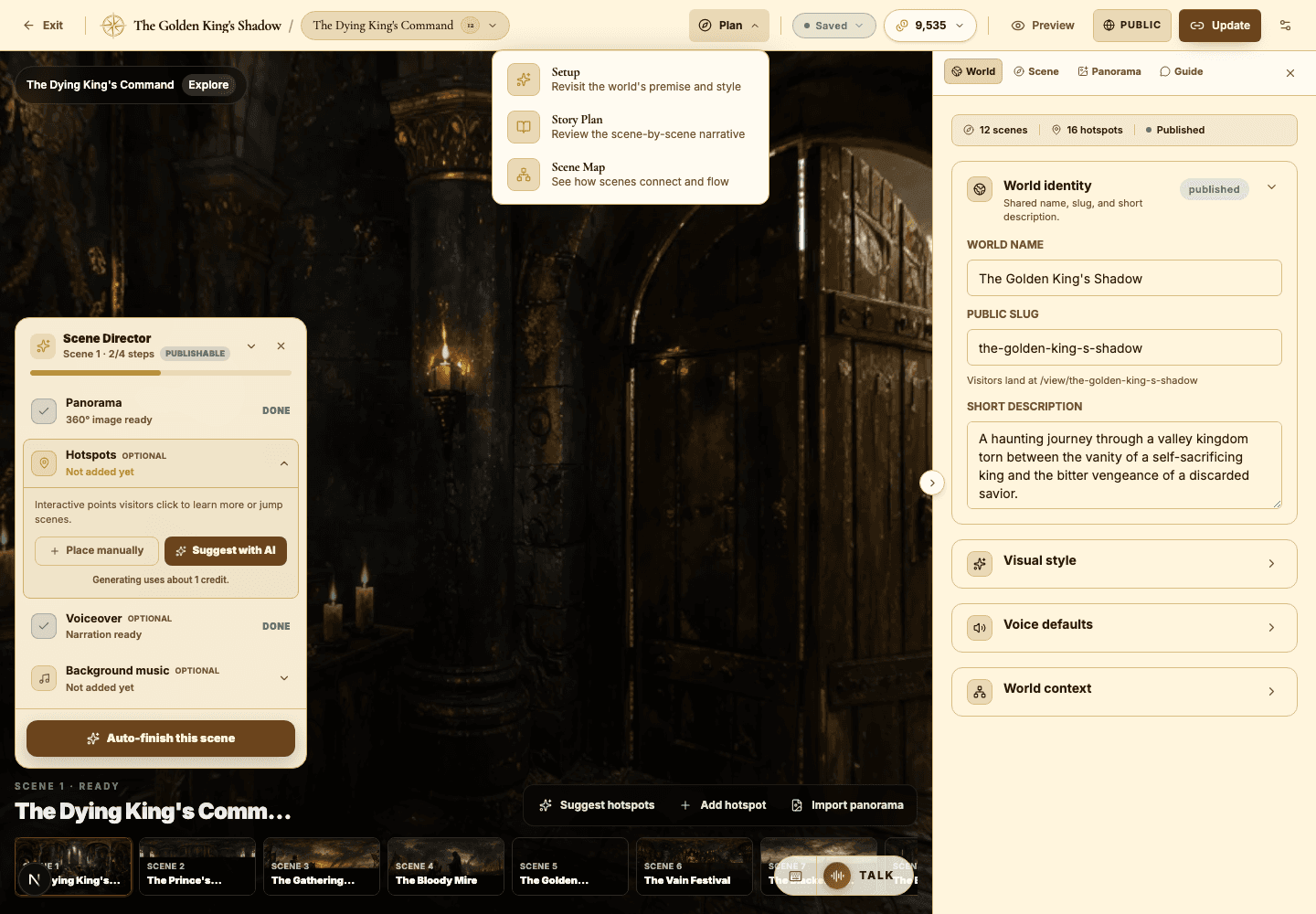
- Open Plan from the builder toolbar to reach both planning tools.
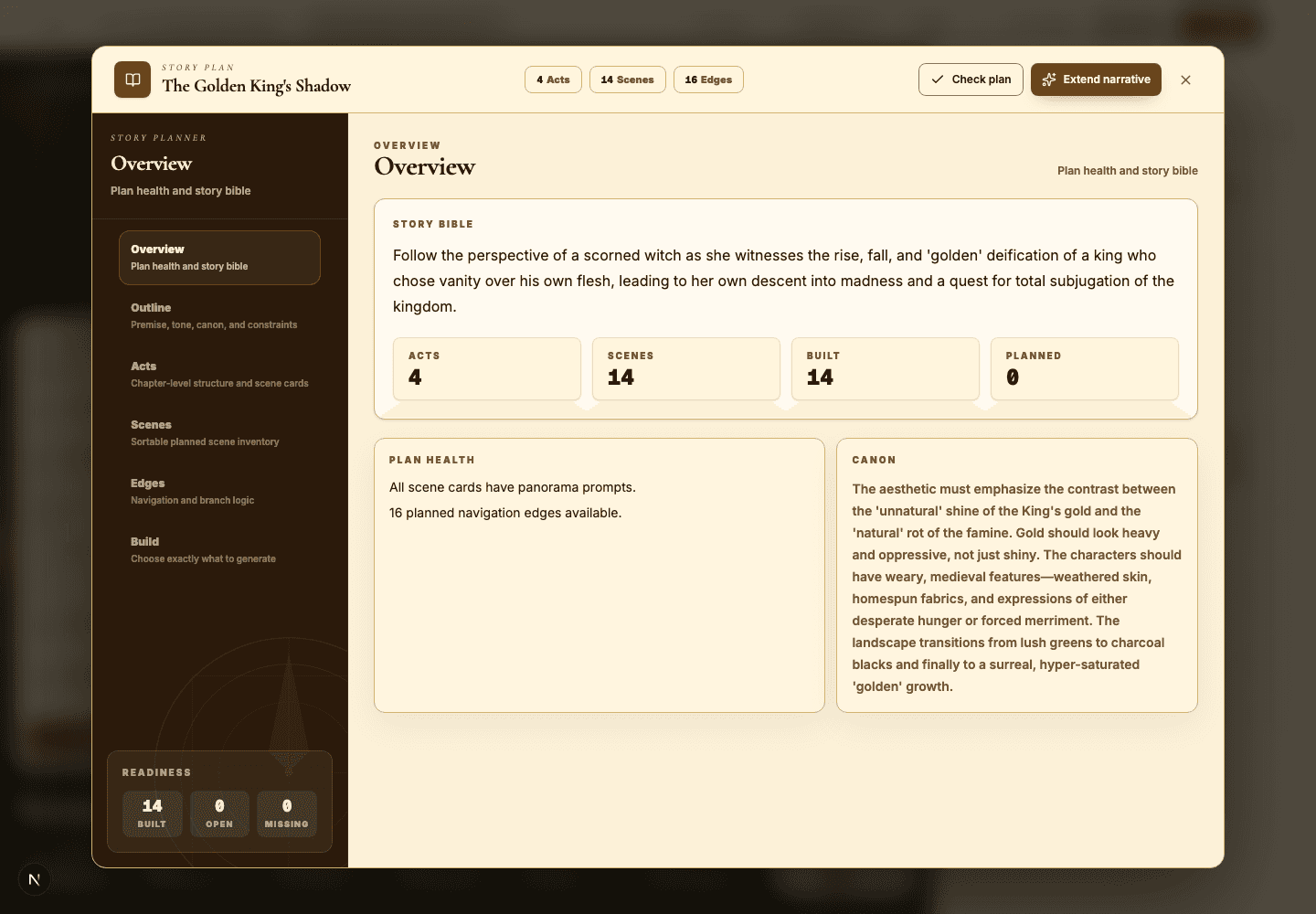
- Use Story Plan to review the overview, the outline, the acts, every scene card, and the navigation edges between them.
- Run Check plan to surface missing prompts, empty fields, and broken planned links automatically.
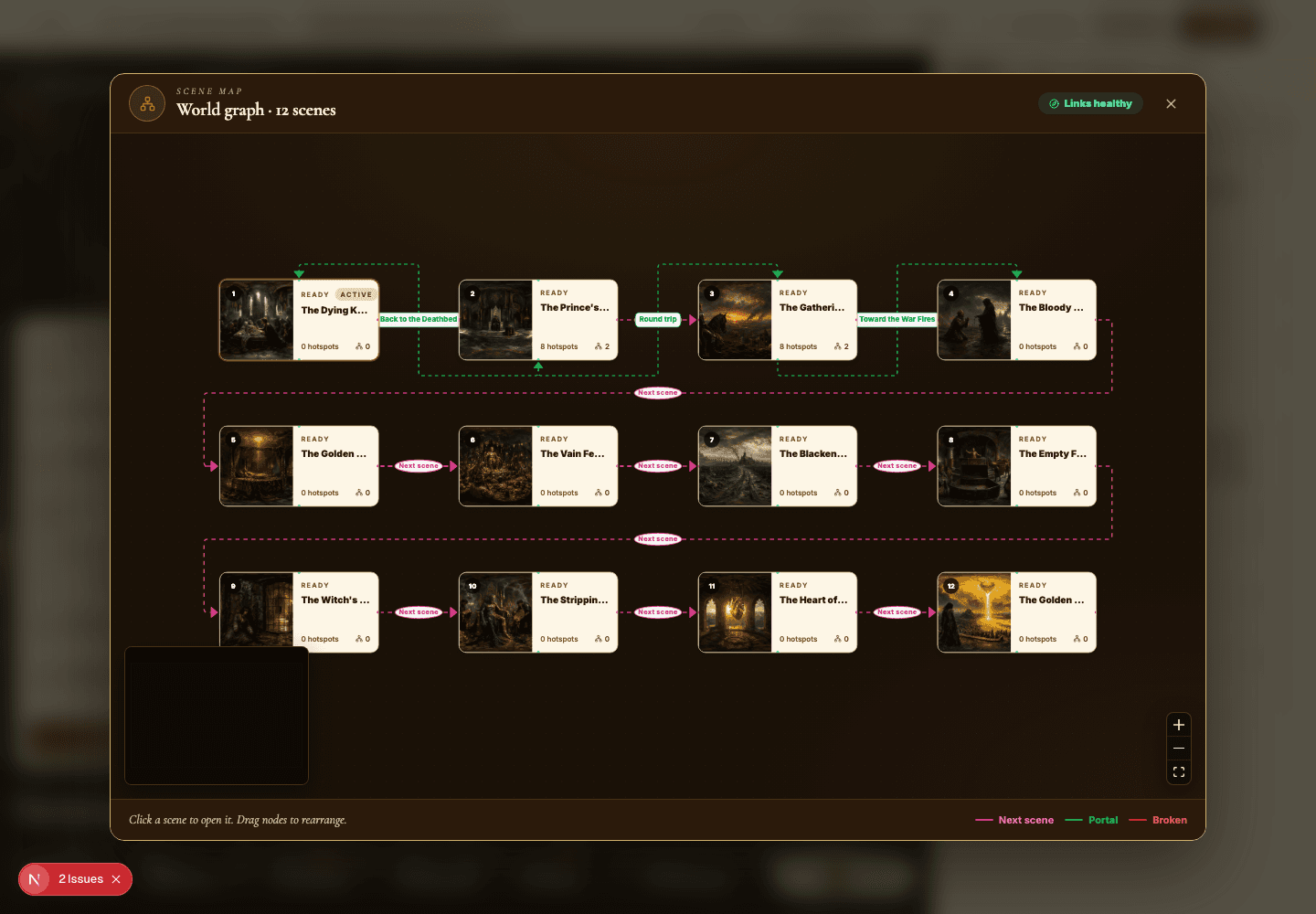
- Open Scene Map to see the world as a connected graph of nodes — not a list of isolated scenes.
- Hunt for trouble: dead ends, confusing loops, and scenes with no meaningful next step.
- Select any scene straight from the map when you need to repair a portal or tighten its context.
Best practices
- Make sure every major scene does real work — it should teach, reveal, compare, or transition.
- Write portal labels that set honest expectations about the destination.
- Keep linear worlds simple; make branching worlds intentional and clearly labeled.
- Re-audit the map every time you add or delete a scene.
Avoid these mistakes
- Adding a portal just because another scene happens to exist.
- Building loops that never tell the visitor why they have circled back.
- Hiding a high-value scene behind one obscure, easily-missed hotspot.
Go deeper
- Scene Map is a navigation QA tool, not just a pretty diagram — use it that way.
- Read each edge as a question of visitor intent: why would someone choose to move from this scene to that one?
- In educational worlds, map every portal to a step in the learning progression.
Screenshot callouts
Related next lessons
Build
World Builder: idea to story plan
Turn a rough idea into a structured world plan, complete with scene cards, prompts, and generation choices.
ContinueImprove
Hotspots, narration hotspots, and portals
Design clickable moments that teach, tell a story, and move visitors smoothly through connected scenes.
ContinuePublish
Previewing, publishing, and Explore
Check readiness, choose the right visibility, push updates to live worlds, and decide when a world belongs in Explore.
Continue