Publish
Creator
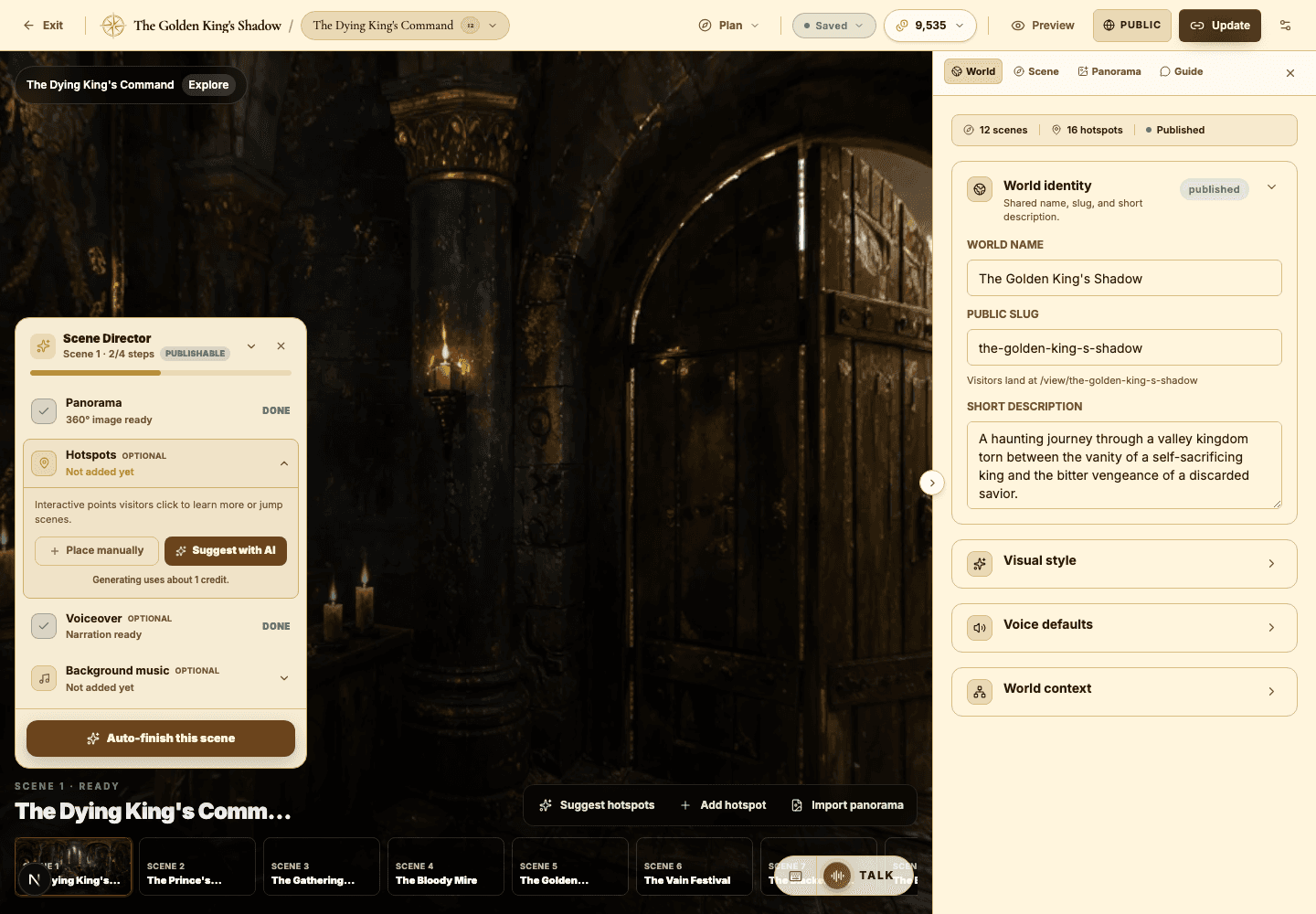
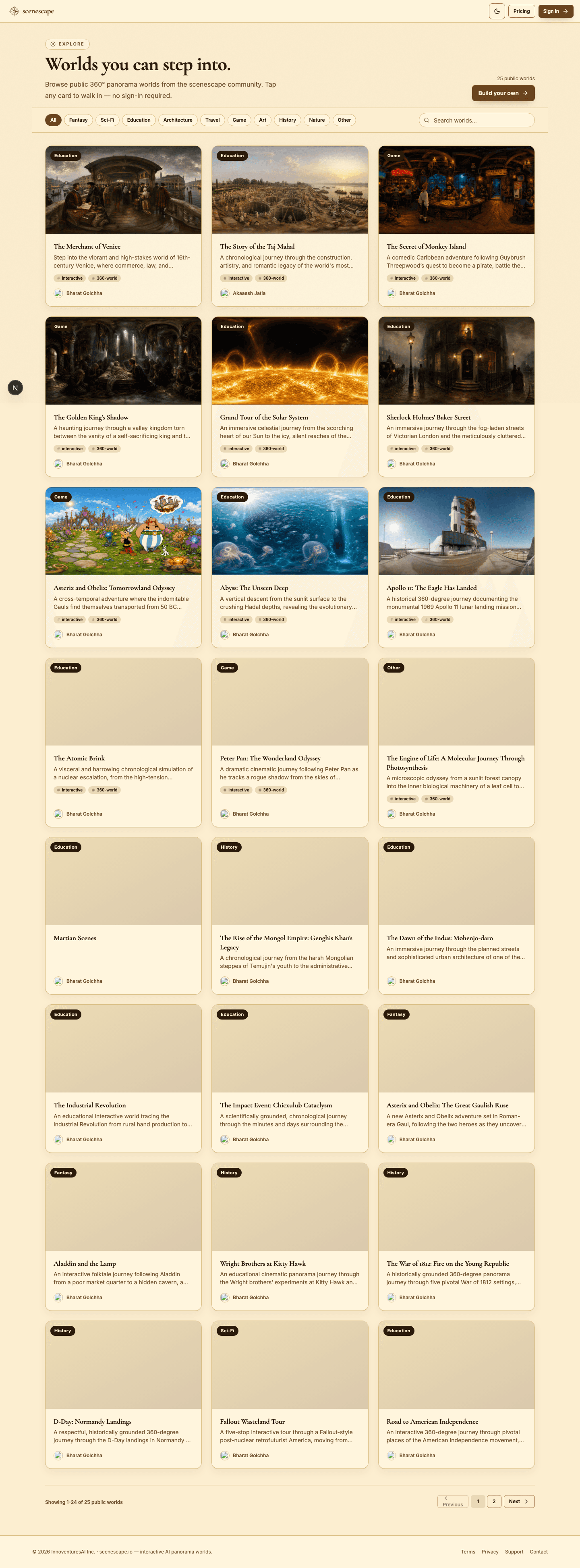
Previewing, publishing, and Explore
Check readiness, choose the right visibility, push updates to live worlds, and decide when a world belongs in Explore.
EducationMuseum or exhibitStoryworldProduct showroomTravel or real estateTraining
Goal
Publish every world with the right visibility and enough polish that its intended audience never feels lost.
When to use it
- You are ready to share a world beyond the builder.
- You need a private review link or a public Explore listing.
- You updated a live world and need those changes pushed out.
Step-by-step walkthrough
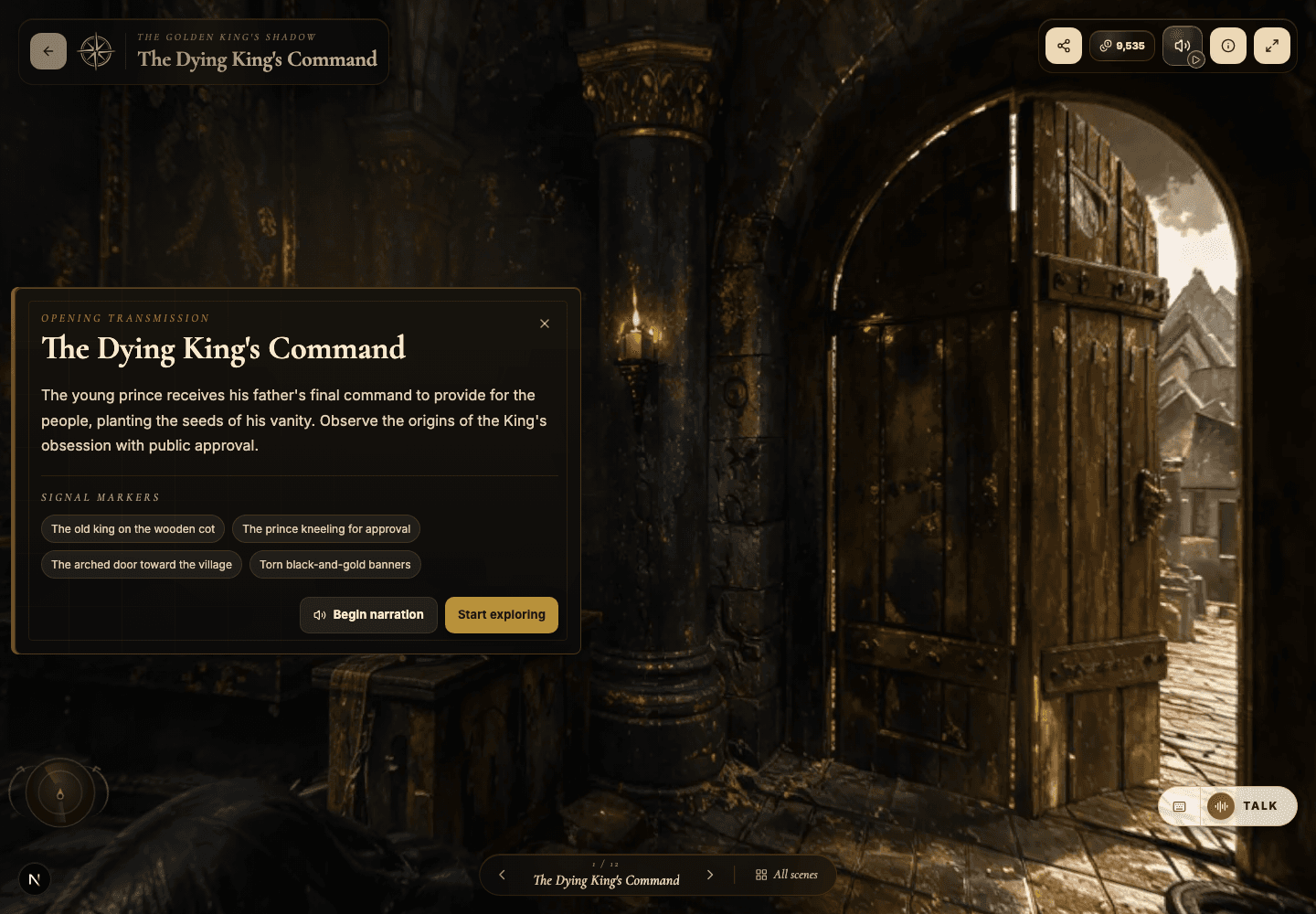
- Open Preview from the builder before you ever touch the publish flow.
- Walk every scene and confirm it has a ready panorama and a meaningful title.
- Open your major hotspots and verify each portal lands on the destination you intended.
- Choose visibility: private for owner-only review, unlisted for sharing a link, public for Explore discovery.
- When publishing publicly, add a category and tags so the world is findable.
- Open the published viewer and experience the world as a first-time visitor.
- Use Update whenever a live world needs new changes pushed to the public version.
Best practices
- Publish unlisted first and gather honest feedback before going public.
- Make the first scene fully self-explanatory for visitors who arrive with no context.
- Go public only once the description, cover image, tags, and navigation are all polished.
- Reopen the live route after every meaningful update to confirm it shipped.
Avoid these mistakes
- Publishing publicly while scenes still carry draft names.
- Forgetting to re-test portals after rearranging scenes.
- Assuming Explore will explain the world for you, without a strong title and description.
Go deeper
- Three visibilities, three jobs: private is for your review, unlisted is for intentional sharing, public is for discovery.
- Explore visitors arrive with far less context than invited viewers — public worlds need clearer opening copy.
- A simple publish checklist prevents the large majority of visitor-facing issues.
Screenshot callouts
Related next lessons
View
Viewer guide
Understand the public viewer end to end — so creators design better worlds and visitors explore with confidence.
ContinueImprove
Hotspots, narration hotspots, and portals
Design clickable moments that teach, tell a story, and move visitors smoothly through connected scenes.
ContinueTroubleshoot
Troubleshooting common creator issues
Fix sign-in, access, generation, publishing, audio, AI Guide, and viewer problems — fast.
Continue