Improve
Creator
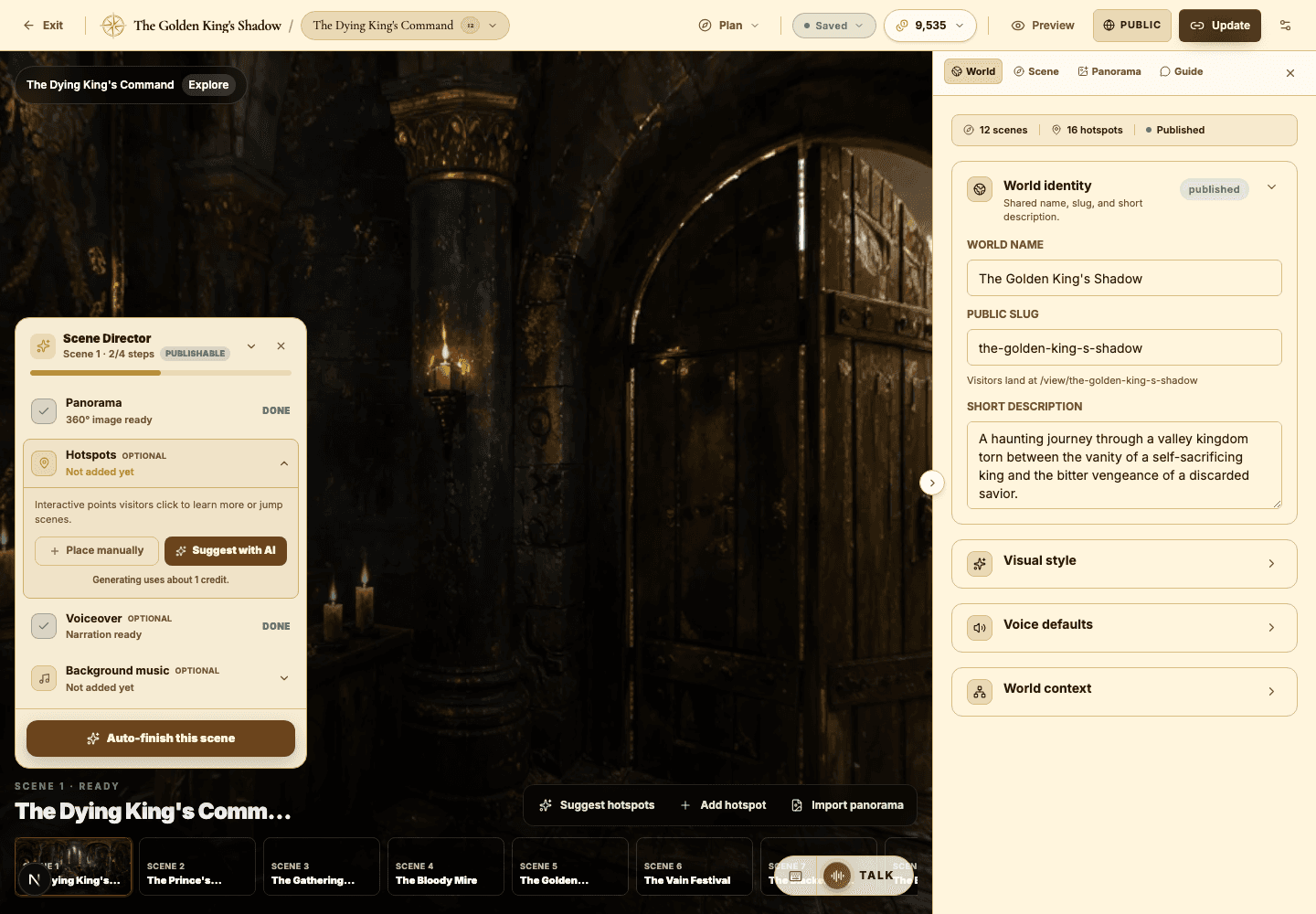
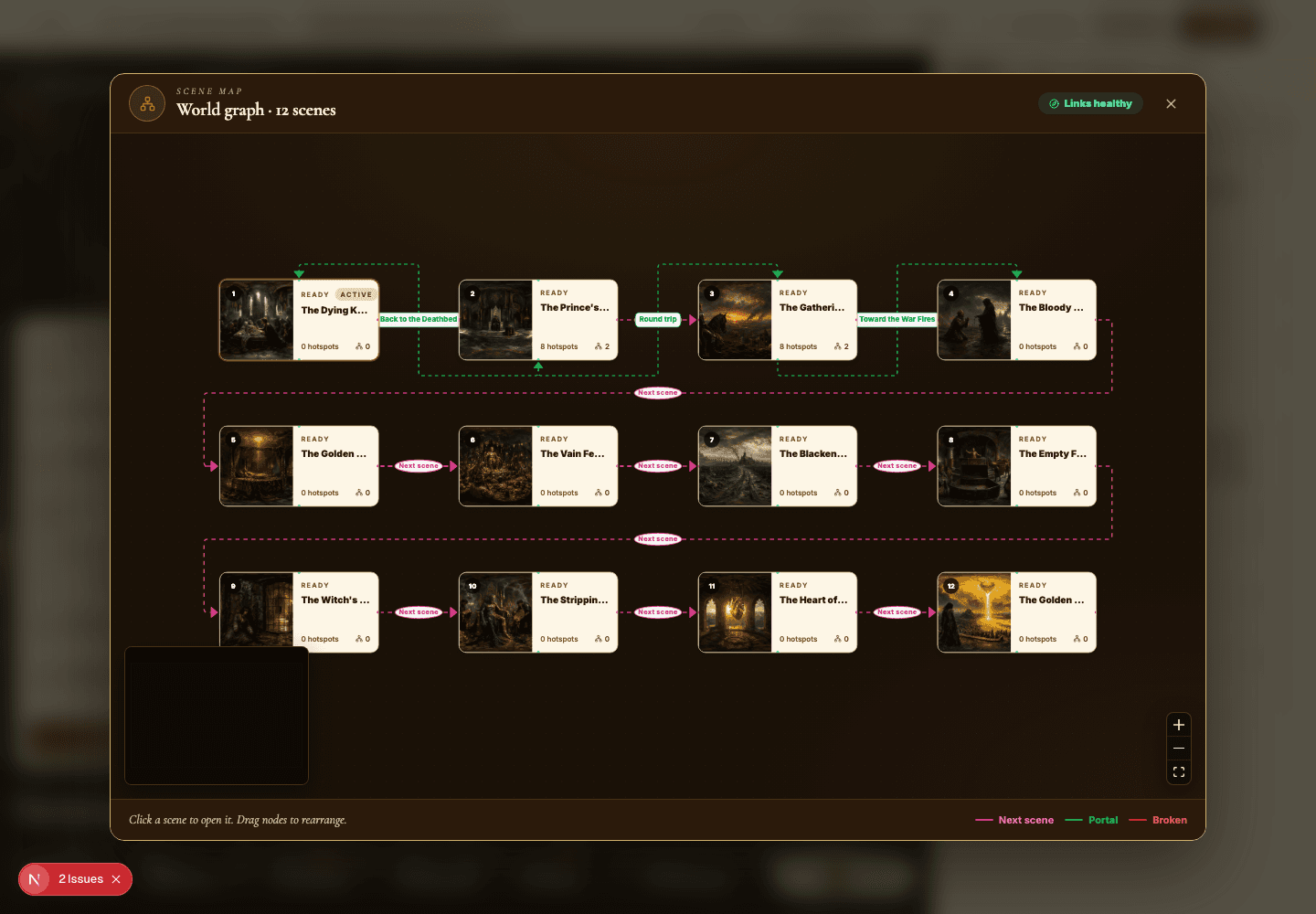
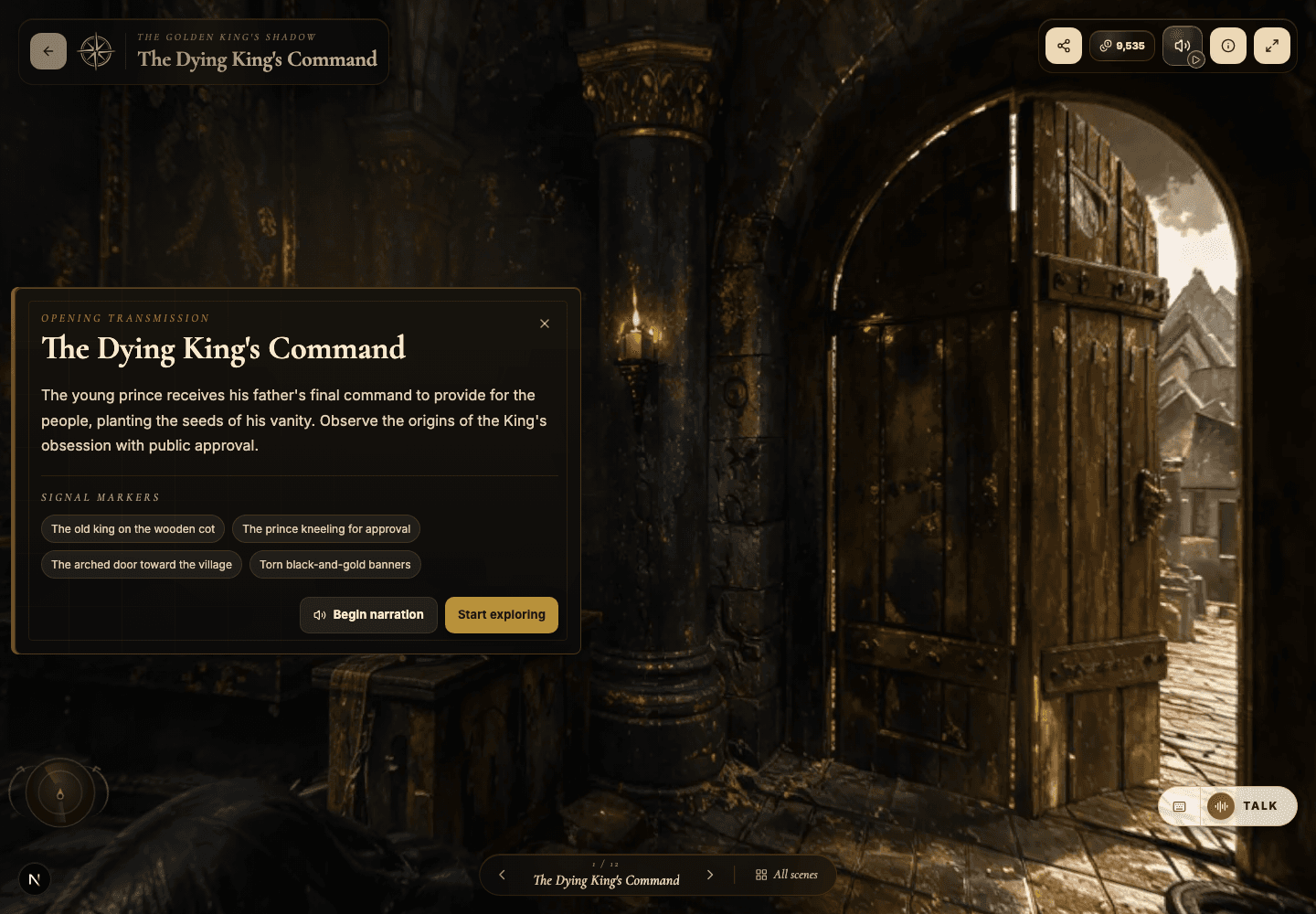
Hotspots, narration hotspots, and portals
Design clickable moments that teach, tell a story, and move visitors smoothly through connected scenes.
EducationMuseum or exhibitStoryworldProduct showroomTravel or real estateTraining
Goal
Create hotspots that feel intentional and earned — each one either deepens understanding or moves the visitor somewhere worth going.
When to use it
- A scene looks great but visitors need a nudge toward what matters.
- You want to connect one scene meaningfully to another.
- You need narration, media, or a focused explanation tied to a specific visual detail.
Step-by-step walkthrough
- Pick a concrete anchor for each hotspot: a visible object, a doorway, a sign, a character, a product, a clue.
- Add an info hotspot when a short piece of explanatory text is enough.
- Add a narration hotspot when the moment lands harder with a spoken beat.
- Add a portal hotspot when the visitor should travel to another scene.
- Write the hotspot title as a decision cue — 'See how the lock works' beats 'Lock.'
- Use the body text to answer the real question: why does this detail matter?
- Preview the hotspot in the public viewer and confirm it opens in a comfortable, readable position.
Best practices
- Aim for three to seven strong hotspots in a dense scene — curation beats coverage.
- Make every portal button label destination-specific, never generic.
- Treat AI hotspot suggestions as a first draft, then curate them down to the keepers.
- Hide or delete weak hotspots before you publish — quality is contagious.
Avoid these mistakes
- Dropping hotspots onto empty stretches of the image with nothing to point at.
- Labelling portals 'Continue' when the visitor has no idea what continuing means.
- Repeating the same information across multiple hotspots in one scene.
Go deeper
- Hotspots should reward curiosity, not interrupt it — they answer questions the visitor was already forming.
- A portal is navigation and storytelling at once; its label should answer 'why go there, and why now?'
- In museums and lessons, tie each hotspot to a specific learning outcome.
Screenshot callouts
Related next lessons
Build
Story Plan and Scene Map
Use the planning tools to audit continuity, scene coverage, and portal navigation before visitors ever get lost.
ContinueImprove
Voiceover, narration, and background music
Use audio to pace your world and set its mood — without ever overwhelming the visitor.
ContinuePublish
Previewing, publishing, and Explore
Check readiness, choose the right visibility, push updates to live worlds, and decide when a world belongs in Explore.
Continue